Ligatures Not Working? Here's Every Fix to Try
If your beautiful font suddenly looks... ordinary, don't worry. In most cases, the font isn't the problem.
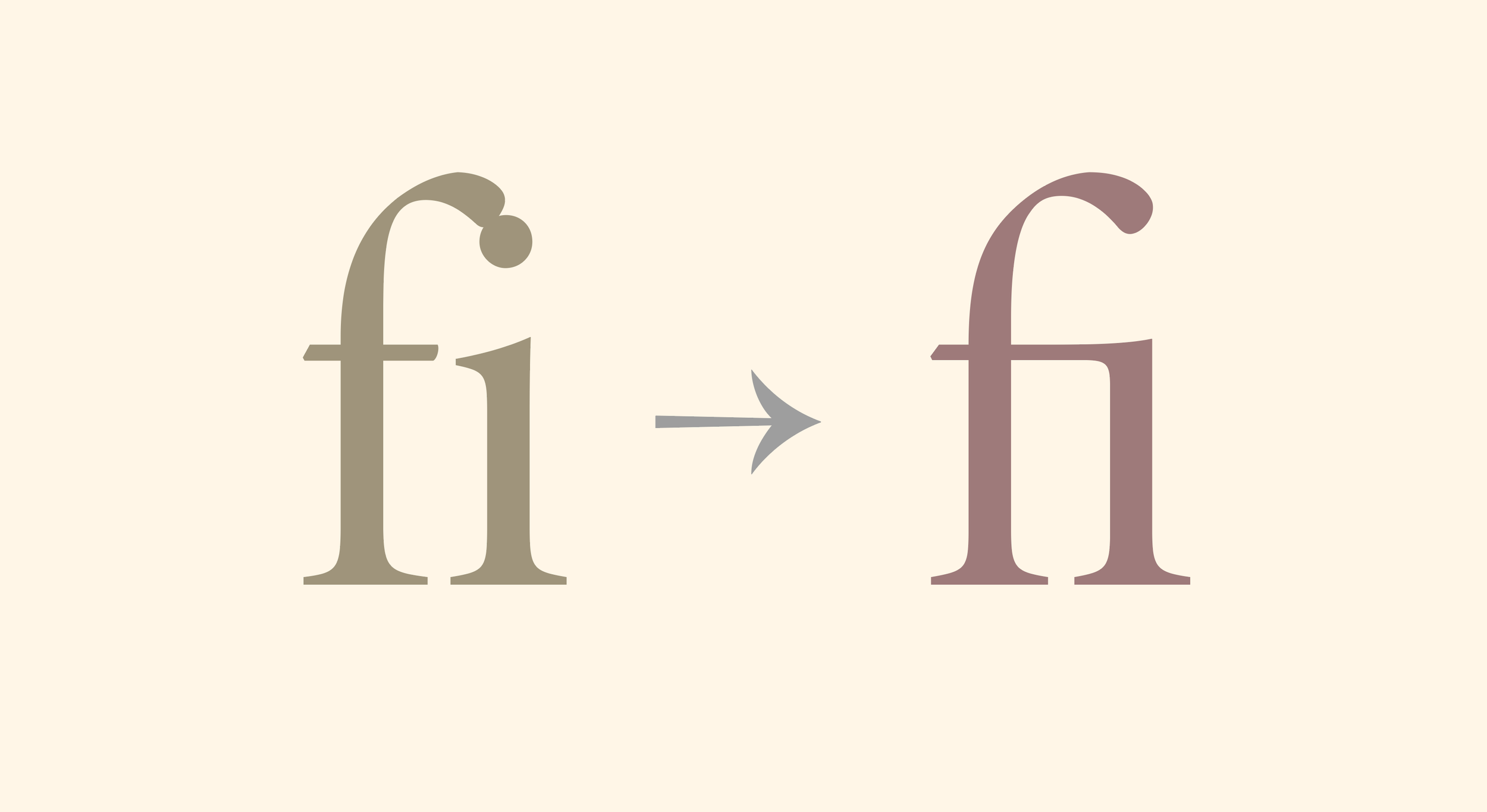
You installed the font. So why aren't the ligatures showing?
You found the perfect typeface, installed it without any issues, and started typing.
Maybe it was a word like office, flower, or affinity. You were expecting those elegant letter combinations you'd seen in the font preview, but instead you got plain, ordinary text.
If that sounds familiar, you're not alone.
This is one of the most common questions we receive from customers, and fortunately, it's almost never caused by a faulty font.
In most cases, the solution is surprisingly simple. A setting needs to be enabled, a different font file needs to be installed, or the software you're using simply doesn't support that particular OpenType feature.
This guide walks through each possibility, from Adobe Illustrator and Photoshop to Canva and Figma, so you can get everything working exactly as intended.
What Are Ligatures?
A ligature is a special character that replaces two or more letters with a single, carefully designed glyph.
Instead of simply placing letters next to each other, the type designer redraws them to create a smoother, more harmonious result.
For example:
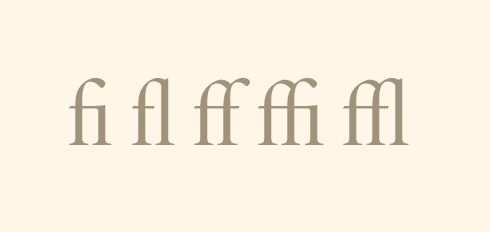
Many modern fonts also include decorative combinations such as:
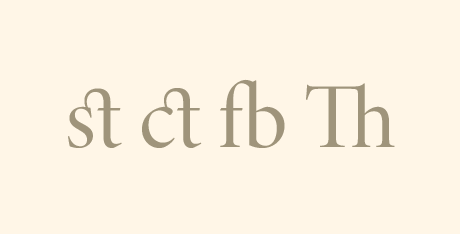
or even entire wordmarks in display typefaces.
These aren't just decorative flourishes. They improve rhythm, spacing, and readability while giving typography a more refined appearance.
Standard vs. Discretionary Ligatures
Not all ligatures behave the same way.
Standard Ligatures
These solve awkward letter collisions.
Examples include:
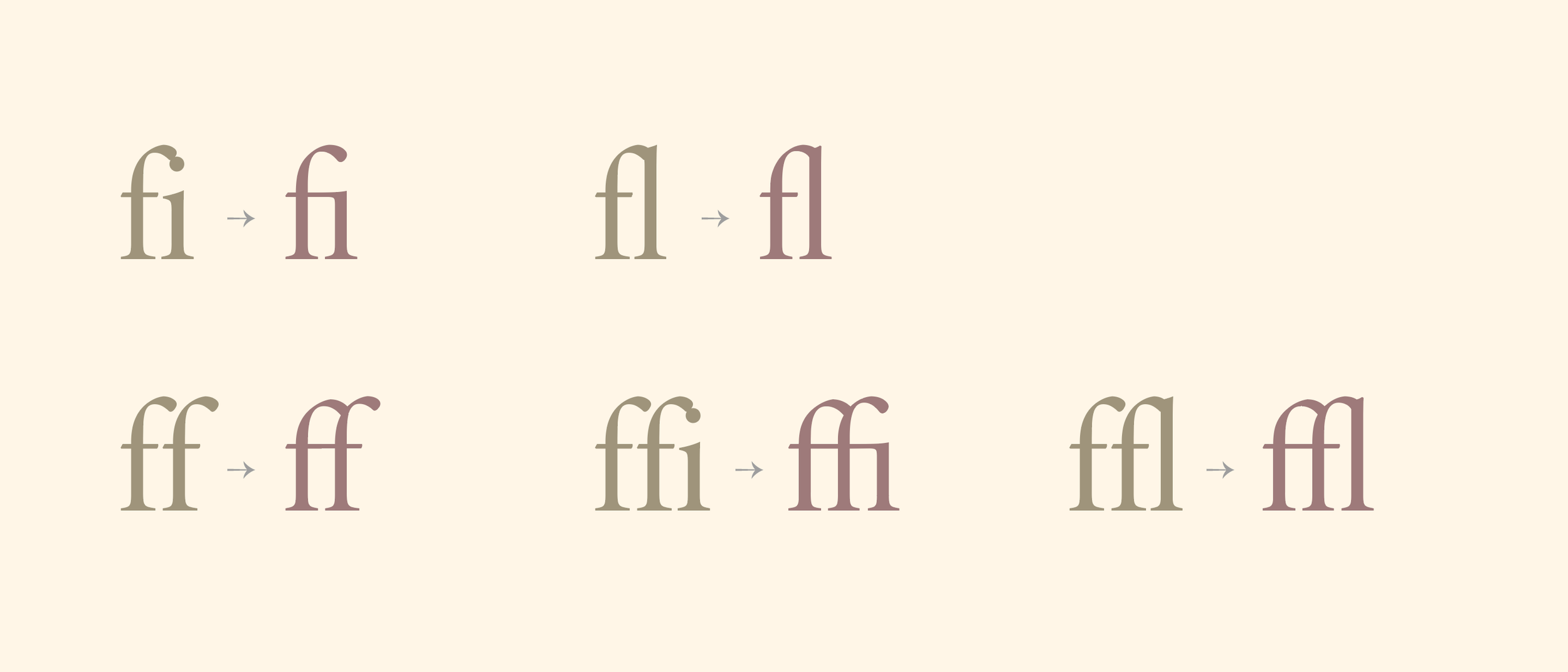
Many applications enable these automatically.
Discretionary Ligatures
These are optional stylistic choices.
Think of them as extra personality rather than necessity.
Examples might include:
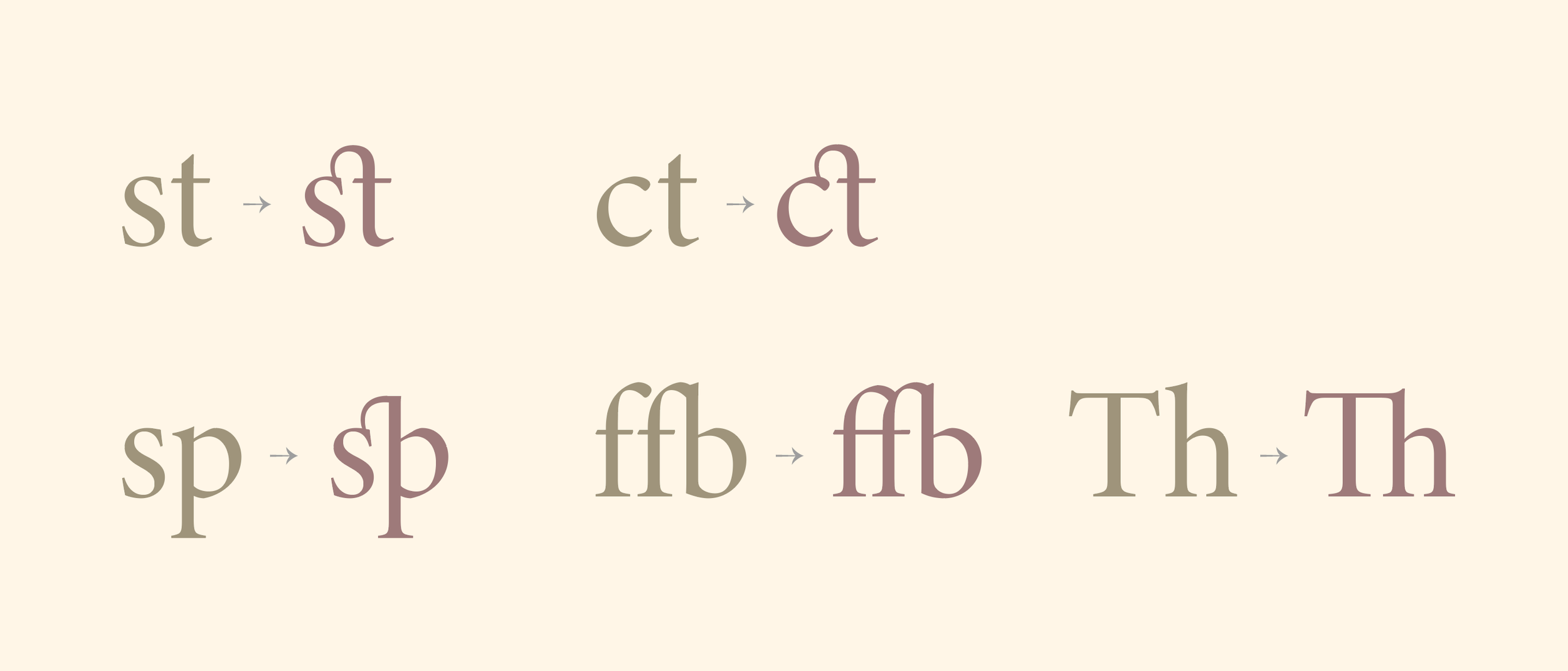
or decorative letter combinations unique to a particular typeface.
These usually need to be enabled manually.
Before You Start Troubleshooting
Take thirty seconds to check these four things first.
✓ Does your font actually include ligatures?
Not every font does.
Many clean sans serifs intentionally avoid discretionary ligatures.
If you're unsure, check the product page or Glyphs panel.
✓ Did you install the OpenType (.OTF) version?
Whenever both OTF and TTF are included, we recommend installing the OTF version.
OpenType fonts generally provide better support for advanced features such as:
Ligatures
Stylistic Alternates
Swashes
Small Caps
Contextual Alternates
✓ Did you restart your design software?
Many Adobe applications only load fonts when they launch.
If Illustrator or Photoshop was already open during installation, simply restart the application.
✓ Are you using the correct font style?
Some families separate Regular, Display, Text, and Decorative styles.
If the ligatures are only included in one style, switching to another may remove them.
How to Enable Ligatures in Adobe Illustrator
Illustrator offers some of the best OpenType support available.
Enable Standard Ligatures
Go to:
Window → Type → OpenType
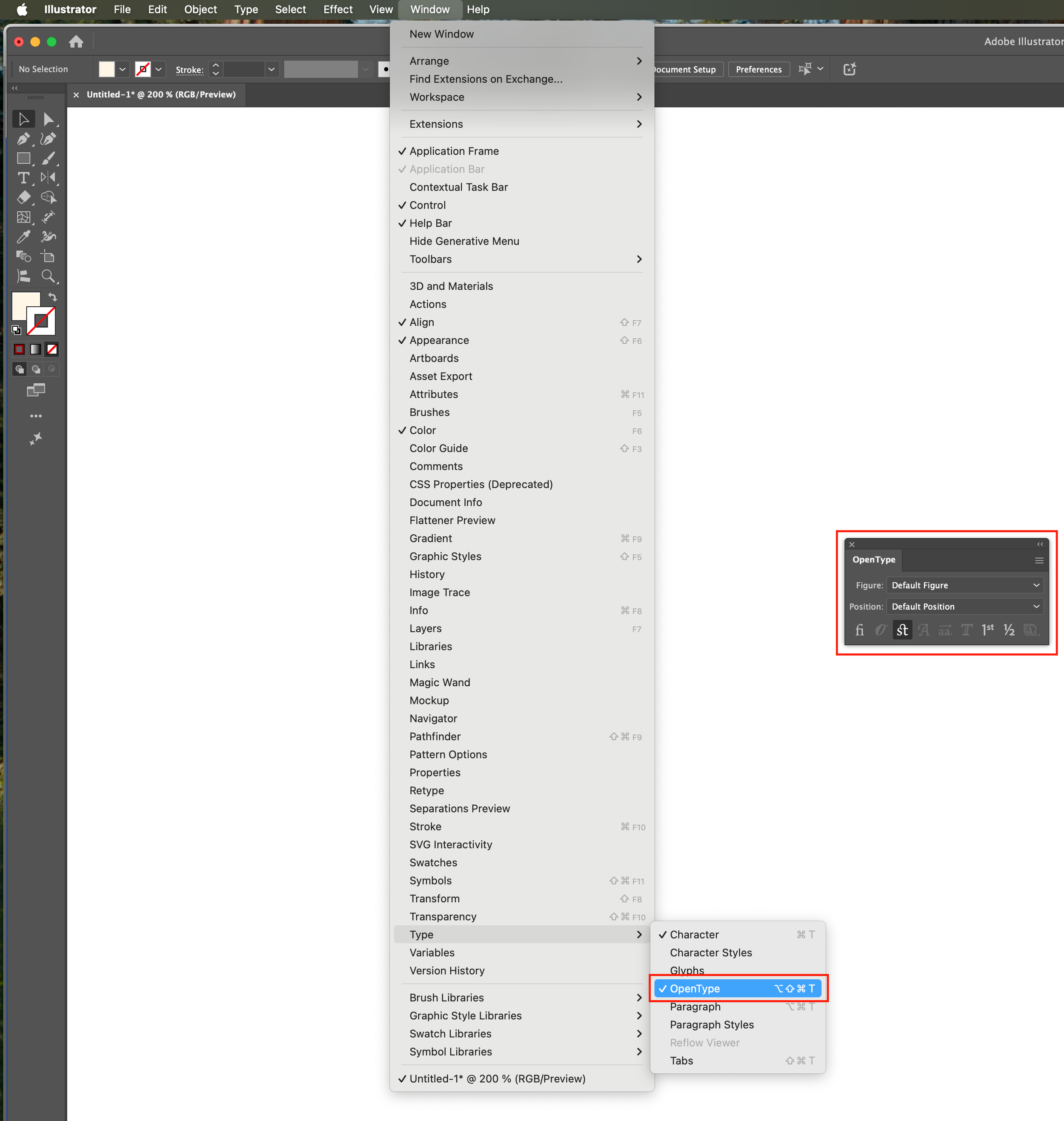
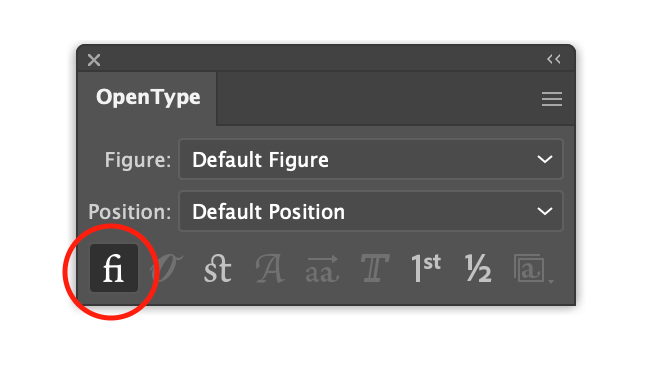
Enable:
✓ Standard Ligatures
Enable Discretionary Ligatures
In the same panel, turn on:
✓ Discretionary Ligatures
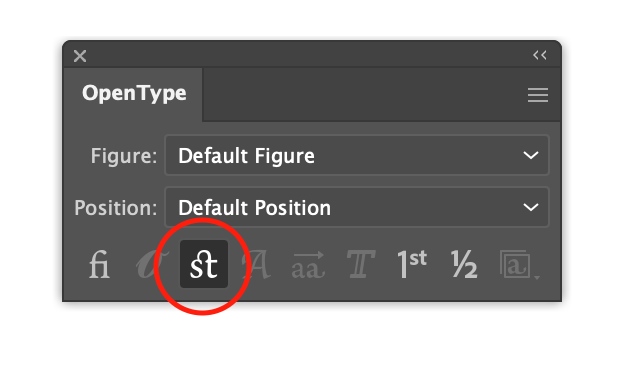
Depending on the font, this may immediately replace letter combinations throughout your selected text.
Still not working?
Check the following:
Text hasn't been converted to outlines.
You're using the correct font style.
The font actually contains discretionary ligatures.
The OpenType panel is enabled.
How to Enable Ligatures in Photoshop
Photoshop also supports OpenType features, although they're slightly more hidden.
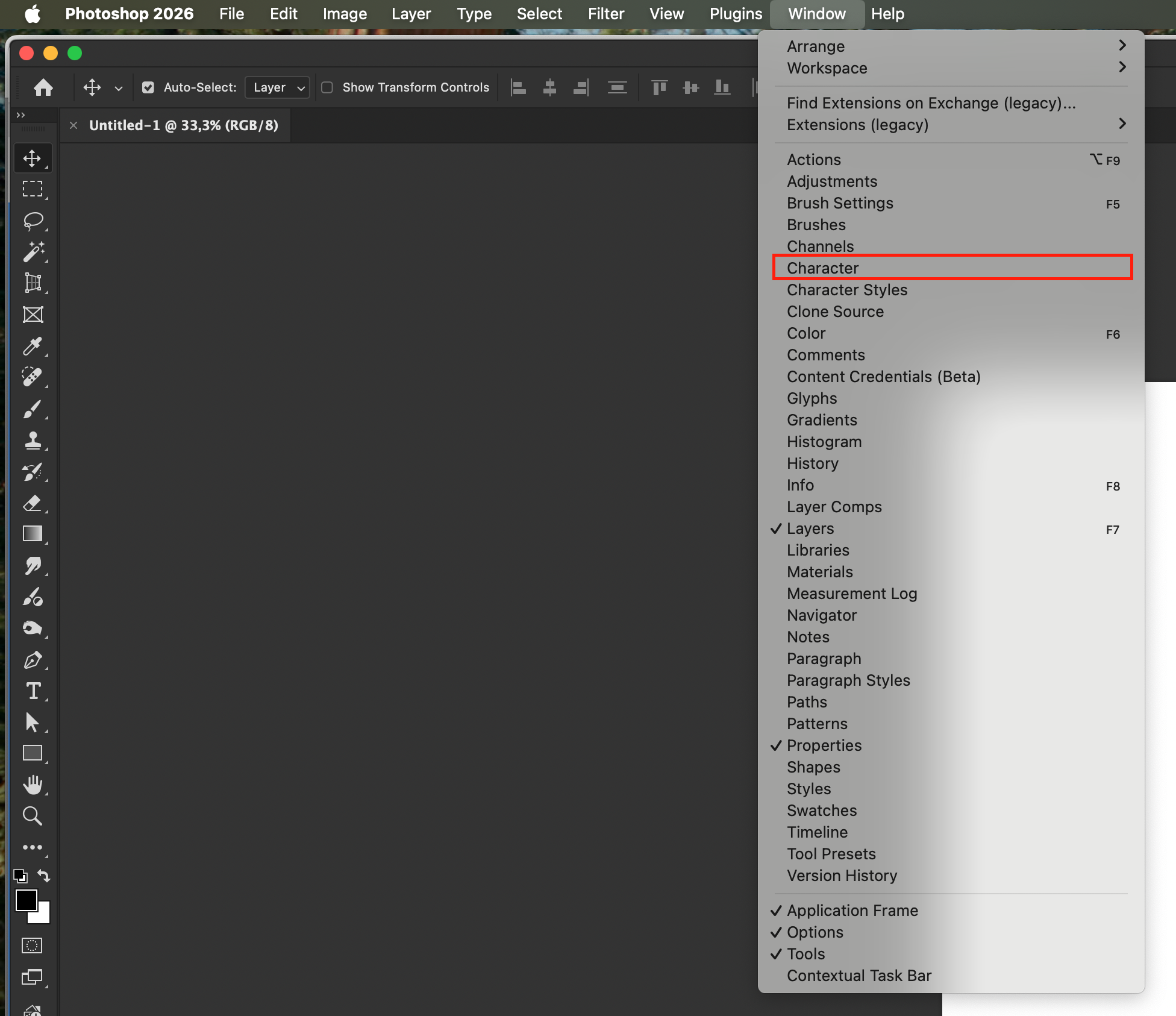
Step 1
Open the Character panel.
Window → Character
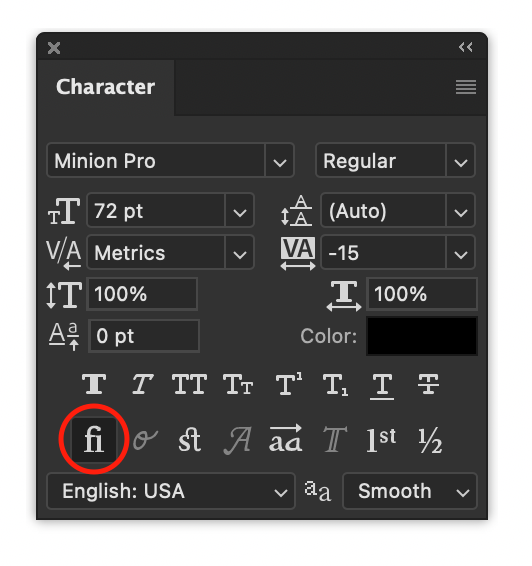
Step 2
Open the Character panel menu.
Enable:
✓ Standard Ligatures
Step 3
For additional alternates, open:
Window → Glyphs
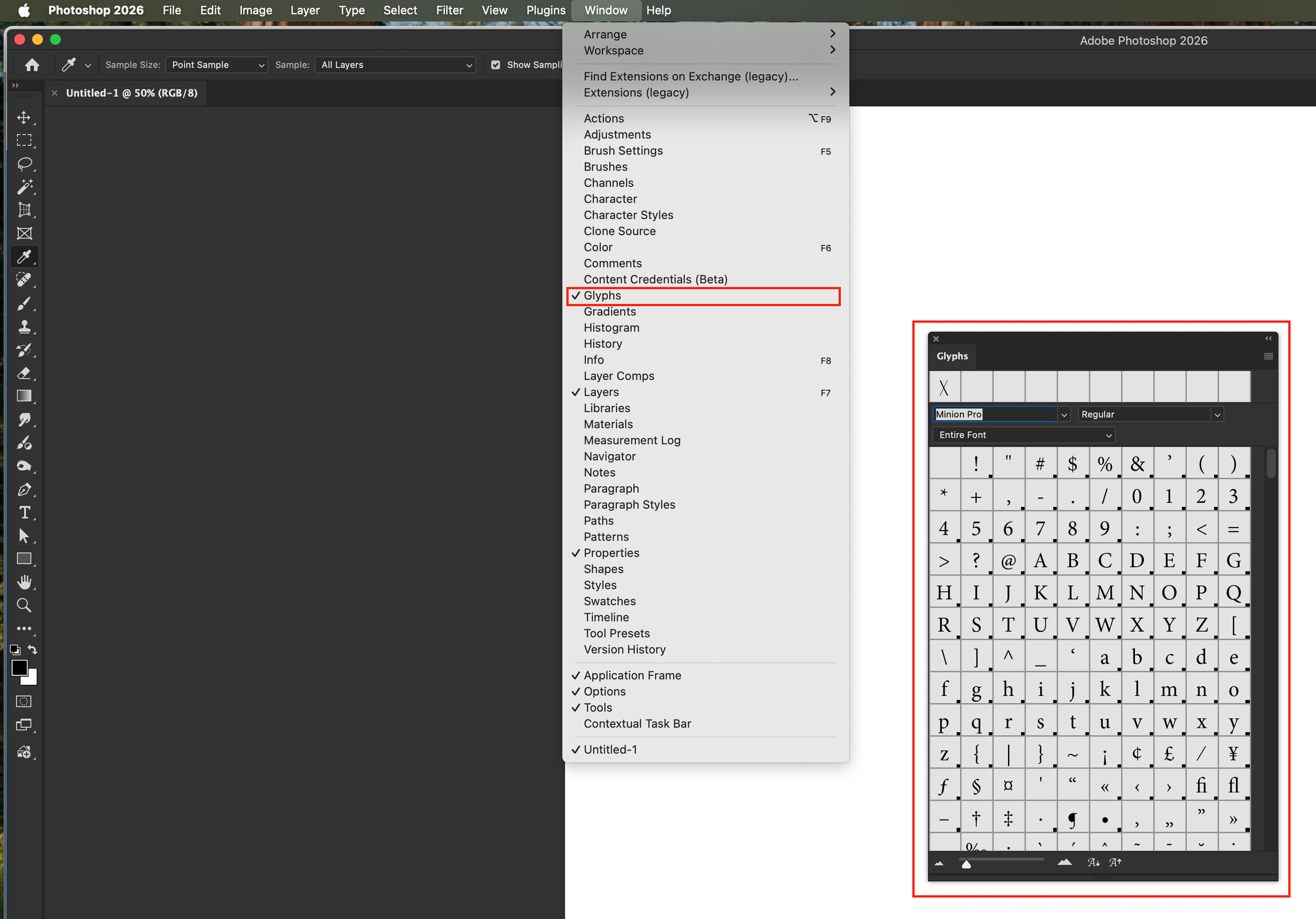
From here you can manually insert alternate characters if your font includes them.
How to Enable Ligatures in Adobe InDesign
InDesign has the most complete OpenType support in the Adobe suite.
Select your text.
Open the Character panel.
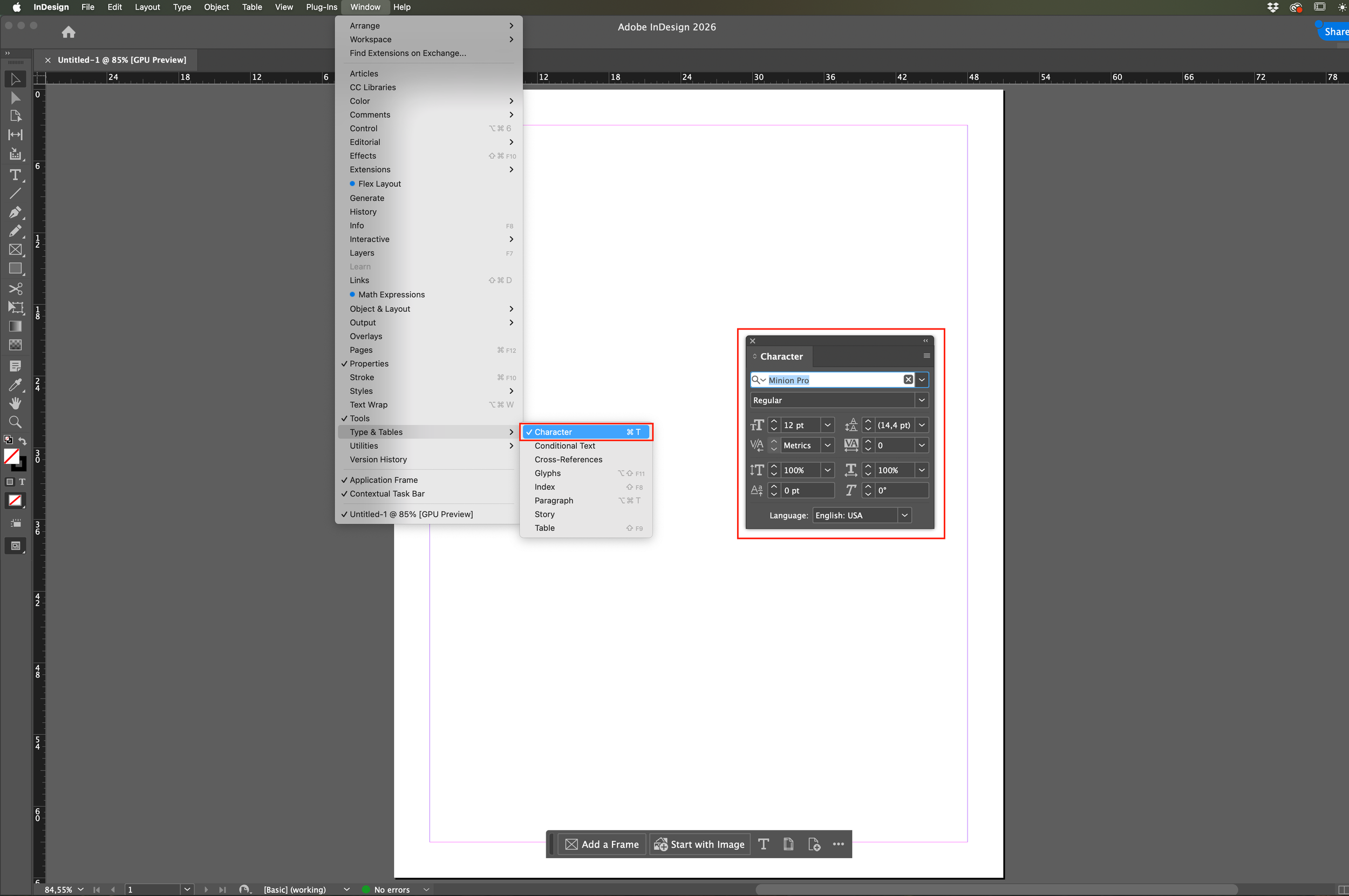
Enable:
✓ Ligatures
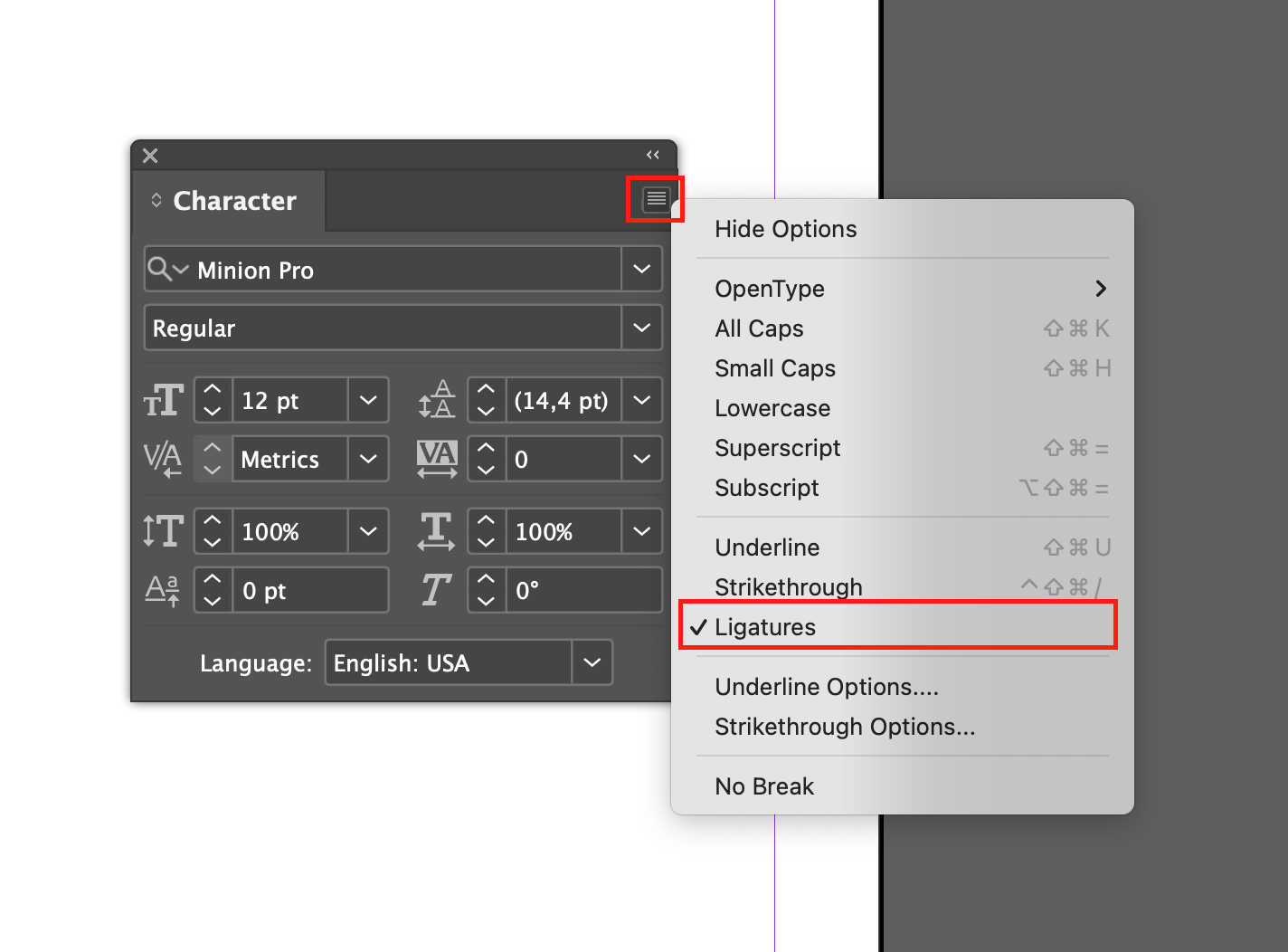
For decorative combinations:
✓ Discretionary Ligatures
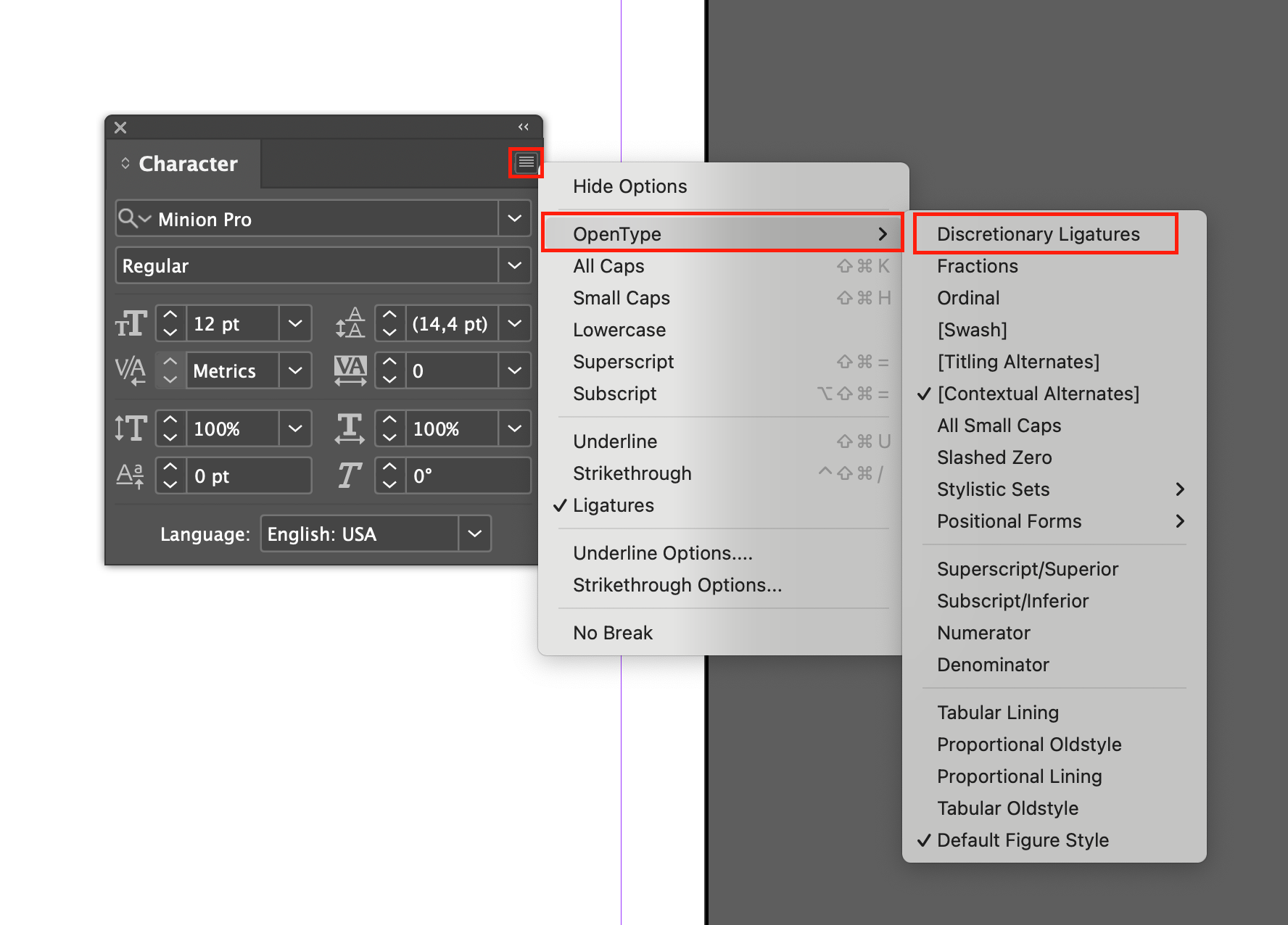
If your font includes stylistic sets, these can also be accessed from the OpenType panel.
How to Enable Ligatures in Canva
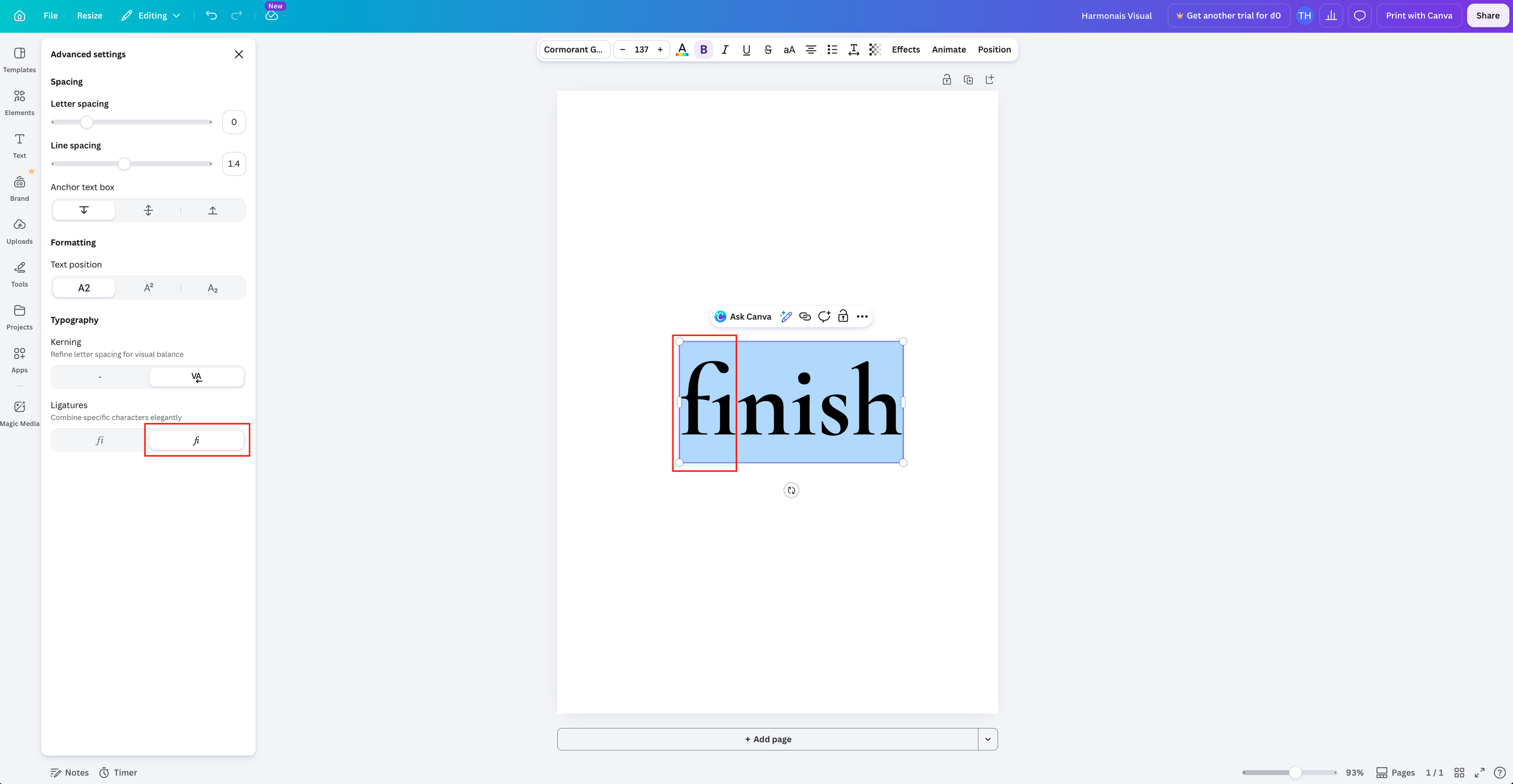
Thanks to recent updates, Canva is now supports Standard Ligatures.
To turn on ligatures in your design:
Select your text.
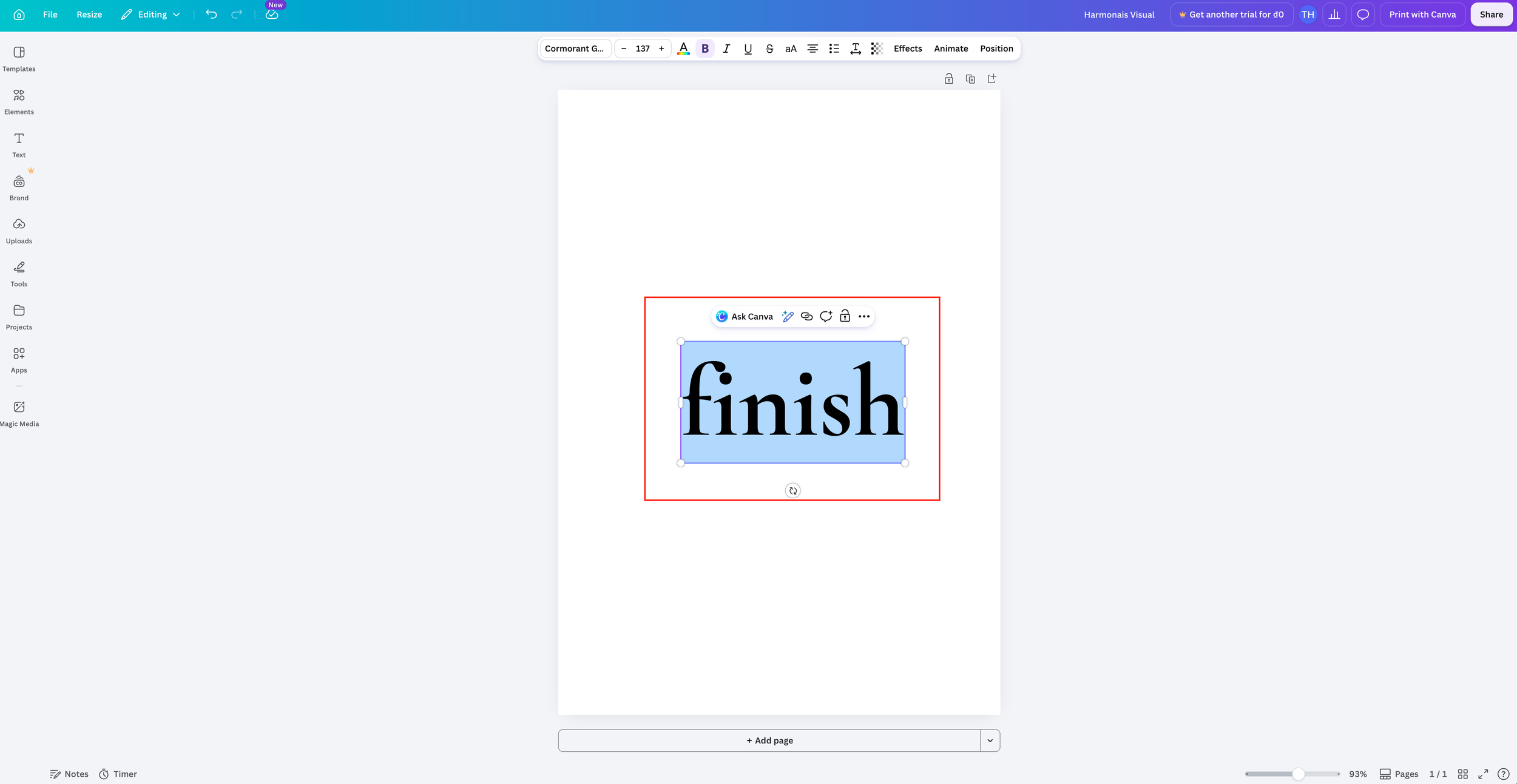
Click Advanced Text Formatting (the "T" icon) on the top toolbar.
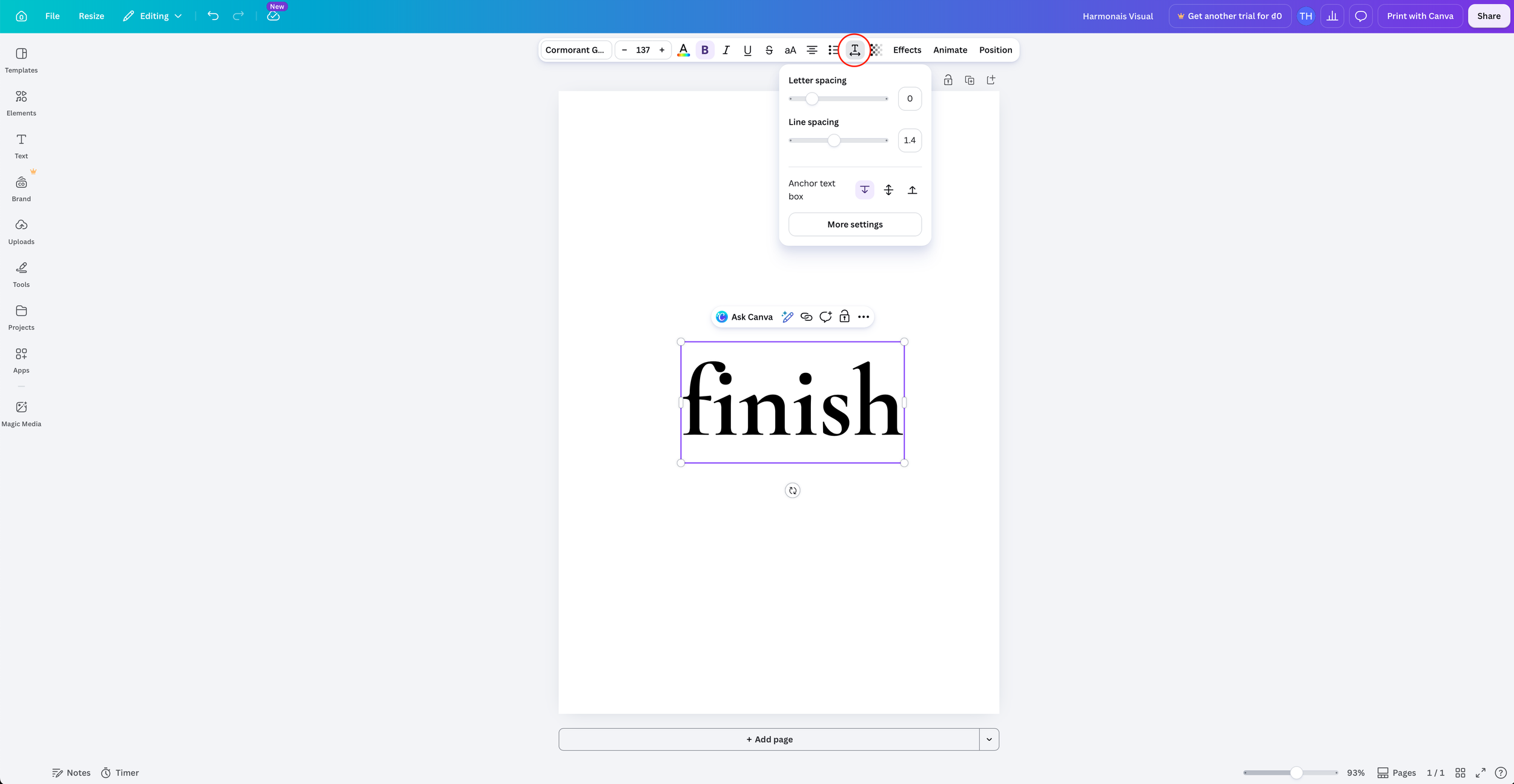
Go to More settings.
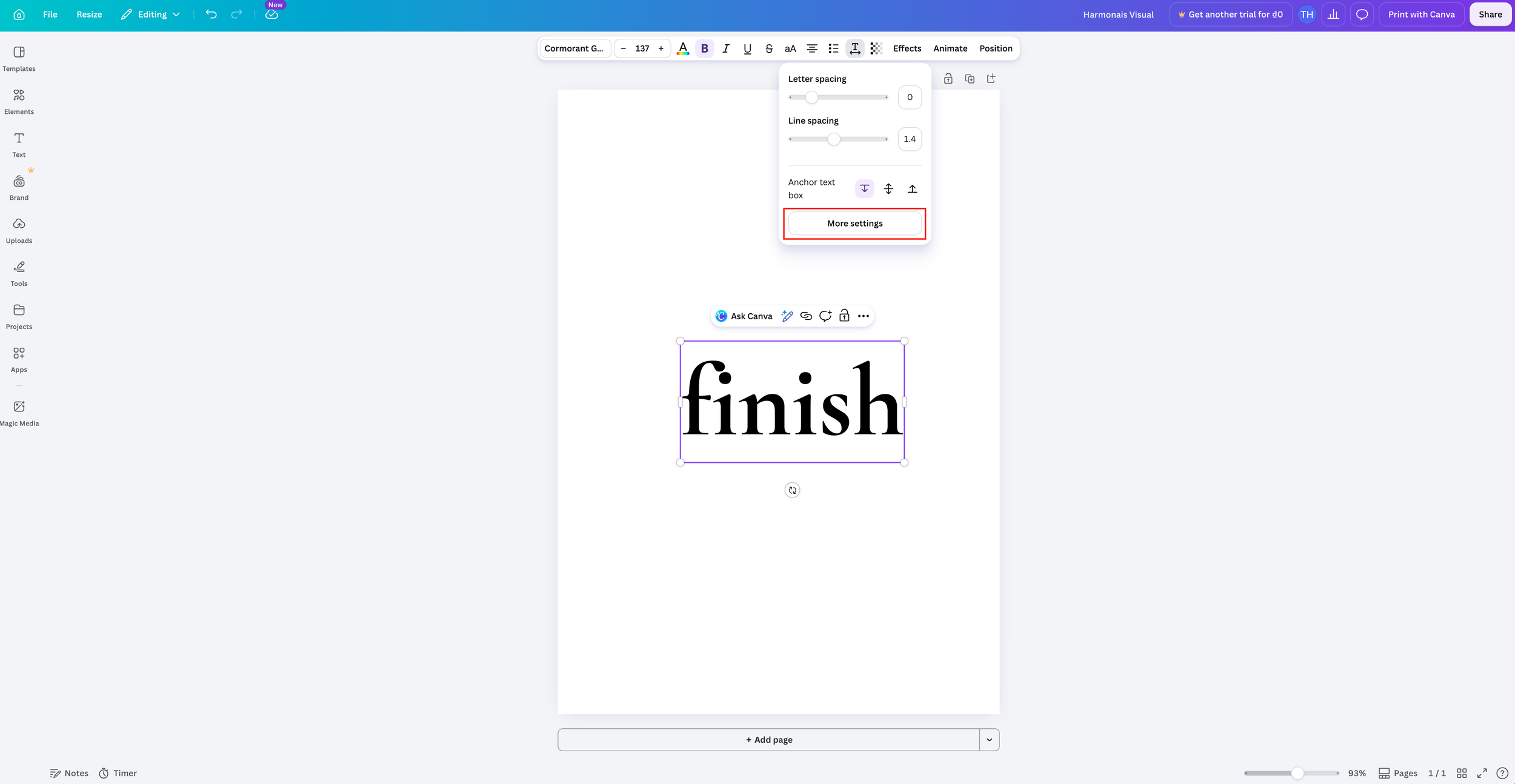
Under Typography, toggle the Ligatures switch on.
How Figma Handles OpenType Features
Figma has steadily improved its typography support, but OpenType features are still more limited than Adobe's desktop applications.
Some fonts expose stylistic features automatically, while others require plugins or currently aren't fully supported.
If you're designing brand identities or editorial layouts where advanced typography matters, Illustrator or InDesign remains the more reliable choice.
Common Reasons Ligatures Aren't Working
This usually points to a font cache issue.
Try:
Restart the application.
Restart your computer.
Remove duplicate font installations.
Reinstall the latest version of the font.
Mac users can also validate fonts using Font Book if installation conflicts occur.
Why Ligatures Work in Illustrator but Not Canva
This is probably the question we receive most often.
Illustrator gives you full access to OpenType features.
Canva currently exposes only a subset of them.
There's nothing wrong with your font.
If you need complete control over typography, create your design in Illustrator or InDesign first, then export it as artwork.
I Installed the Wrong Font File
Another surprisingly common issue.
Here's a quick guide:
| File | Best for |
|---|---|
| OTF | Graphic design, branding, Adobe apps |
| TTF | Older software and general compatibility |
| WOFF | Websites | WOFF2 | Modern Websites |
If you accidentally installed the webfont (WOFF or WOFF2), your desktop applications won't recognize it correctly.
Likewise, uploading an OTF file to your website isn't recommended when a webfont is available.
Frequently Asked Questions
Do all fonts include ligatures?
No.
Some typefaces include only standard ligatures, while others offer dozens of decorative combinations. Many minimalist sans serifs intentionally avoid discretionary ligatures altogether.
Why don't ligatures appear automatically?
Some applications enable only standard ligatures by default. Decorative ligatures usually need to be switched on manually.
Are ligatures available in every design program?
No.
Support varies widely between applications. Adobe Illustrator, Photoshop, and InDesign offer excellent OpenType support, while browser-based tools may only support a limited feature set.
Can I use ligatures on websites?
Yes, provided your webfont includes them and your CSS enables the relevant OpenType features. Browser support is generally good, though implementation can vary.
Are ligatures only decorative?
Not at all.
Many standard ligatures exist to improve readability by preventing awkward letter collisions. Others simply add visual character and are left to the designer's discretion.
Final Thoughts
Most ligature problems can be solved in just a few minutes.
Before assuming the font is broken, check the basics:
Install the correct font format.
Restart your software.
Enable OpenType features.
Make sure your application supports them.
Typography is full of small details, and ligatures are one of those subtle touches that can make beautifully set type feel effortless.
Once you know where to find them, you'll rarely have to troubleshoot them again.
Need a hand?
If you're using a Harmonais Visual font and still can't get your ligatures working, feel free to get in touch. We'd be happy to help troubleshoot. In most cases, the fix takes less than five minutes.